Send one good email to a list of people
Mail merge for the people who asked to hear from you, from your own Gmail. No account, no upload, no server, and your list never leaves your browser.
Free. Works in Chrome, Edge and Brave, for Gmail on the web.
You wrote one email. Now send it to forty people.
You have a message you believe in and somewhere between forty and four hundred people who should read it. The usual ways of doing that are each bad in their own way.
What people do now
- Paste the same email forty times and fix the name by hand, getting it wrong on the one person who mattered
- Put everyone in Bcc, so it reads as a circular and gets deleted
- Upload the list to a platform they met that morning, and send from a subdomain nobody recognises
What Mailplate does
- Merges your own columns into one message, one person at a time
- Paces the send across the day, inside Gmail's own sending limits
- Sends from your own Gmail, so the reply lands in your inbox
- Keeps your list in your browser, uploaded to no one
One message, merged and paced, from your own inbox
Write the message once, with your own fields in it, and Mailplate sends it to each person from your Gmail on a pace you set, so each one arrives as its own message, addressed to them.
Your own columns
Not just first name and company. Add the fields your business actually has, give each one an example so the format is clear, and drop them into the subject or the body as {{variables}}.
Paced, inside Gmail's limits
A daily limit, the hours you choose, the days you choose, and a random gap between messages, so forty emails do not all go out at 9:00:00 and read as a machine.
From your own Gmail
Each message is sent from your account, so it arrives from the address people already know, and the reply comes back to your inbox, in the thread, like any other email.
A book of people
Import a CSV, map the columns, and everyone you have lives in one place with your own fields on them, instead of scattered across spreadsheets.
Cc, Bcc and send-as
Loop in a colleague on every message, and send from a verified alias like sales@ when that is the address a reply should go to.
A suppression list
Addresses no message will ever go to. Every import checks it first, so somebody who asked to stop cannot be added back by a fresh file.
A real unsubscribe
Every message carries a List-Unsubscribe header Gmail recognises, so a reader gets an unsubscribe control at the top instead of reaching for Report Spam.
Plain text alongside
Every send includes a generated plain text version next to the HTML, so it reads properly in a text client or a screen reader.
What the app looks like
The sending half is a full page you open from the extension icon: your campaigns, your people, your templates, the accounts you send from, and a suppression list, all on your own machine.
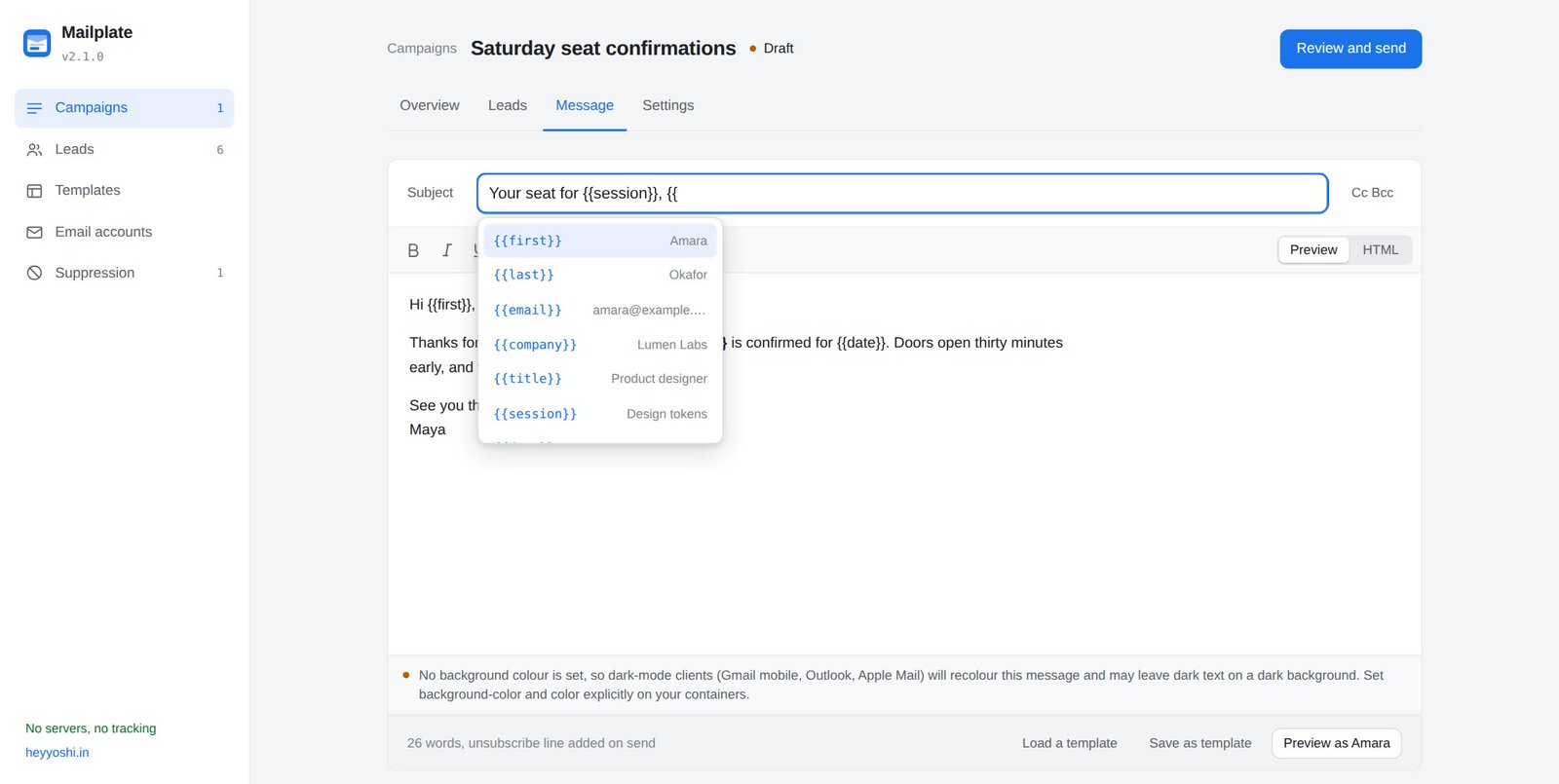
Write it once, with your fields in it
The message is one email with your own columns dropped in as {{variables}}. Each person gets their own copy, and a preview shows exactly how it reads for any one of them before a single message goes out.
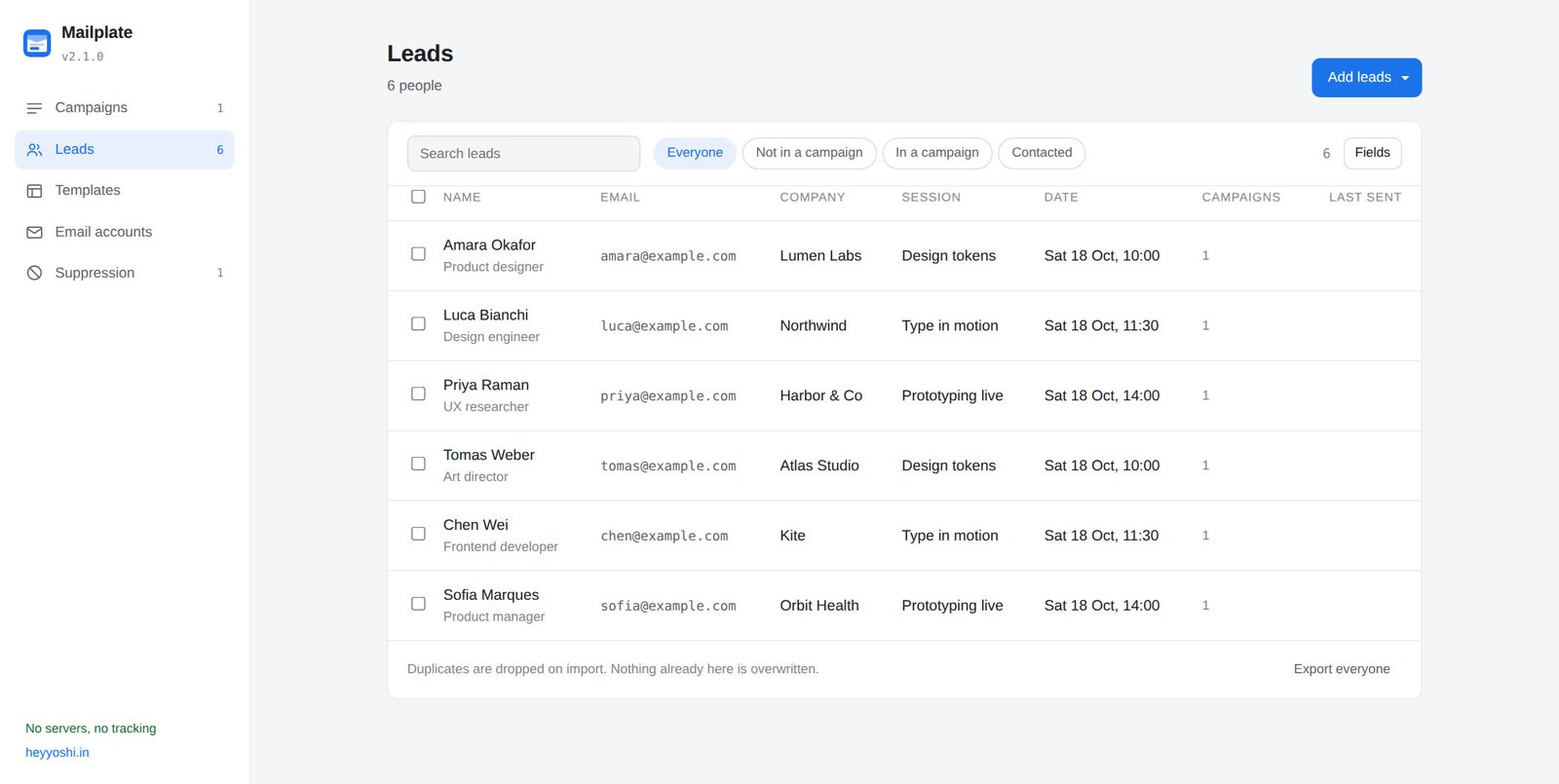
Your people, in one book
Import a CSV, map the columns, and everyone lives in one place with the fields your business actually keeps. Duplicates are dropped on import, and the suppression list is checked before anyone is added back.
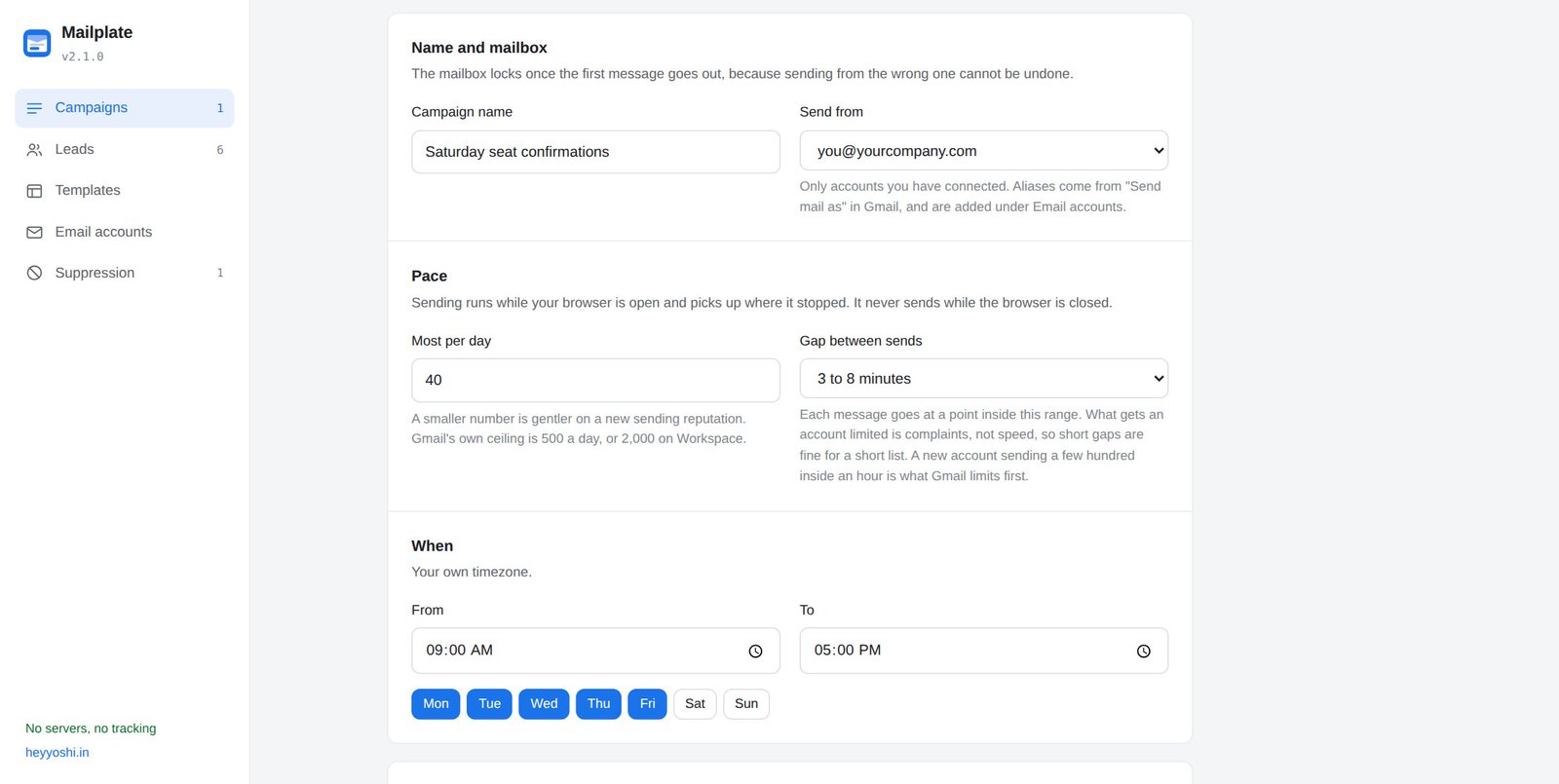
Set the pace, then leave it
A daily cap, a gap between each message, the hours and the days. The send goes out from your own Gmail across the working day, at a steady pace inside Gmail's own limits, rather than all at once.
Your list never leaves your browser
No account. No upload. No server. Every other mail merge asks you to create an account and hand over your list. Mailplate has nowhere to send it: your people, your templates and your messages live in your own browser, and mail goes straight from your machine to Gmail.
You can check that in ten seconds. There is no sign-up form. The source ships readable, because the Chrome Web Store forbids obfuscated code, and the extension declares four hosts, every one of them Google. There is no server to breach, because there is no server.
The only limit is Gmail's
Mailplate does not cap you. Gmail allows 500 recipients a day on a free account and 2,000 on Workspace, and that is the only ceiling there is. The free tiers elsewhere, twenty a day, fifty a day, five hundred a month, are pricing decisions dressed as limits. Cc and Bcc count against Gmail's number, so a run with two people in Cc spends three of your daily total per message.
The awkward part, said first
It cannot see replies or bounces: that needs a permission to read your mail, and this asks for one that can only send. It does not track opens or clicks, because that means a tracking pixel and you did not agree to be followed. And it only sends while your browser is open, because there is no server running it for you.
No open or click tracking
There is no tracking pixel and no rewritten link, so it cannot tell you who opened or clicked. Gmail caches images anyway, so the number would be wrong as well as unwelcome.
No reply or bounce detection
Seeing a reply or a bounce means reading your inbox, and the one permission it asks for can send but cannot read. A reply just arrives in your Gmail, for you to read.
No automatic follow-ups
It does not send automatic follow ups to people who did not answer. Every message it sends is one you chose to send.
No sending while closed
The send runs from your browser, not a server, so a paced run goes out while your browser is open, stops when you close it, and picks up where it left off when you come back.
Designed email, not merged text
Every other mail merge drops plain text into a Gmail draft. Mailplate ships a library of HTML designs, and when you paste your own it survives Gmail's renderer instead of falling apart the moment you press Send.

Edit it where you read it
Click straight into the preview and start typing. Change the headline, rewrite the paragraphs, relabel the button, and the text picks up the design as you go. There is nothing to learn and no markup to hunt through.

It tells you what Gmail will break
Paste a design from anywhere and Mailplate checks it while you watch: grid and flexbox, absolute positioning, images that will not load for the recipient, missing background colours that dark mode will recolour. Each warning says what to use instead, while you can still change it.

See the phone view first
Most email is opened on a phone. Switch to Mobile and the message is scaled exactly the way Gmail's app renders it, not cropped and not guessed at, so you are not sending yourself a test and squinting.

It looks like it belongs in Gmail
The Templates button sits next to Send, and the picker follows whichever Gmail theme you use. It reads the actual page rather than your operating system, so it matches even when the two disagree, and undo still works after inserting.
Pick a design and fill it in from the keyboard
Go from picking a design to filling in the last blank without reaching for the mouse. Neither shortcut adds a setting, needs learning before the extension works, or takes a key Gmail already uses.
Open the picker without leaving the keyboard
Type two semicolons and the list appears at the cursor. Keep typing to narrow it, Enter to insert. It has to start a word, so a semicolon in an ordinary sentence cannot set it off, and Gmail keeps its own slash key.
See what you still have to fill in
After inserting, the parts in square brackets are highlighted. Tab jumps between them, and clicking one selects the whole of it so the next thing you type replaces it. A small bar says how many are left and clears once the last one is done.
Start from a design that already survives Gmail. Five ship with Mailplate, and the library on this site adds 17 more for the emails people actually send - all free, all table first, all editable once they are in your message.
 Follow ups
After no reply
The second email when the first one got silence.
 Invoices and payments
Invoice email
Sending an invoice so it gets paid without questions.
 Meetings and projects
Recap with actions
The written record of what a meeting decided.
 Job and recruiting
Job application
The email that carries your CV.
Free today
Mailplate is free, with no account and no ads. It costs almost nothing to run, because there is no server behind it: it sends through your own Gmail, so there is nothing for me to host, and no per-message cost pushing it to change.
Being straight with you: that is how it is today, not a promise carved into stone forever. What it will not be is a bait and switch. Nothing you have already installed is going to start demanding money, and if a bigger tool ever justifies a price, it will say so on its own page before you install it.
Get a direct answer
Hit a bug, or something not behaving? Send it through the Support tab on the Mailplate Chrome Web Store listing. Messages there reach me directly, and I answer all of them. Most questions are covered below first.
Do I need to know HTML?
No, that is the whole point. Pick one of the built-in designs, click into the preview and type over the words. The HTML is there if you want it, in a Code tab, but you never have to open it.
How do I know my list is not being uploaded?
Read it. The Chrome Web Store forbids obfuscated code, so the whole source ships readable, and the extension declares four hosts, all of them Google. The fastest thing to check is that there is no sign-up form: there is nowhere to create an account, because there is no server to hold one.
Can Mailplate read my email?
No. It asks for one Gmail permission, the one that sends mail, and that permission can send and cannot read a single message in your mailbox. A second scope reads the address of the account you connect, so a send can never claim to come from an address you did not authorise. You can see both on Google's consent screen when you connect, and in the source.
Does it track who opens or clicks?
No. There is no tracking pixel and no rewritten link, so once a message is sent, Mailplate learns nothing more about it. It cannot see opens, clicks, replies or bounces. The section above says the same thing in full, because it is the trade you are making and it should not be buried.
How many people can I send to?
As many as your own Gmail allows. Mailplate adds no cap of its own: Gmail permits 500 recipients a day on a free account and 2,000 on Workspace, and that is the ceiling. Cc and Bcc count against it. It is not unlimited, it is Gmail's limit, which is a good deal more than the twenty or fifty a day the free tiers elsewhere give you.
Will this get my account banned?
It sends through Google's own API, inside your account's own daily limit, with random gaps between messages rather than all at once. What gets accounts limited is complaints, and the defence against those is a shorter, more relevant list, which is the kind of list this tool is built for.
What happens when I close my laptop?
The run stops and resumes when you open it again. There is no server sending on your behalf, so nothing goes out while your browser is shut. For a list paced across a working day this rarely matters, and when it does, it is a real limit rather than a hidden one.
How do I disconnect my Google account?
Two ways, and either is enough. In Mailplate, use Disconnect account, which revokes the token with Google and removes it from your device. Or in your Google Account, under Security and third-party apps with account access, remove Mailplate. Uninstalling the extension removes everything it kept as well.
Will my design look right in Outlook too?
The built-in designs are table based with inline styles, which is the most portable shape email markup has, and they hold up well across clients. The compatibility warnings target Gmail specifically, since that is what can be checked precisely. For a high stakes send, test with a service like Litmus or Email on Acid.
Does it work in the Gmail mobile app?
No. Chrome extensions cannot extend the Gmail mobile apps at all, which is a platform limit rather than a missing feature. Mailplate works with Gmail on the web in Chrome, Edge and Brave. The mail you send is of course readable everywhere, which is what the phone preview is for.